|
如果你的 Mac 恢复分区损坏,或者要在额外的分区上安装 macOS,可以制作一个可启动的 macOS 安装 U 盘。本文将介绍如何下载 macOS 安装程序,并创建启动 U 盘的详细步骤。
制作 macOS 启动盘
准备工作
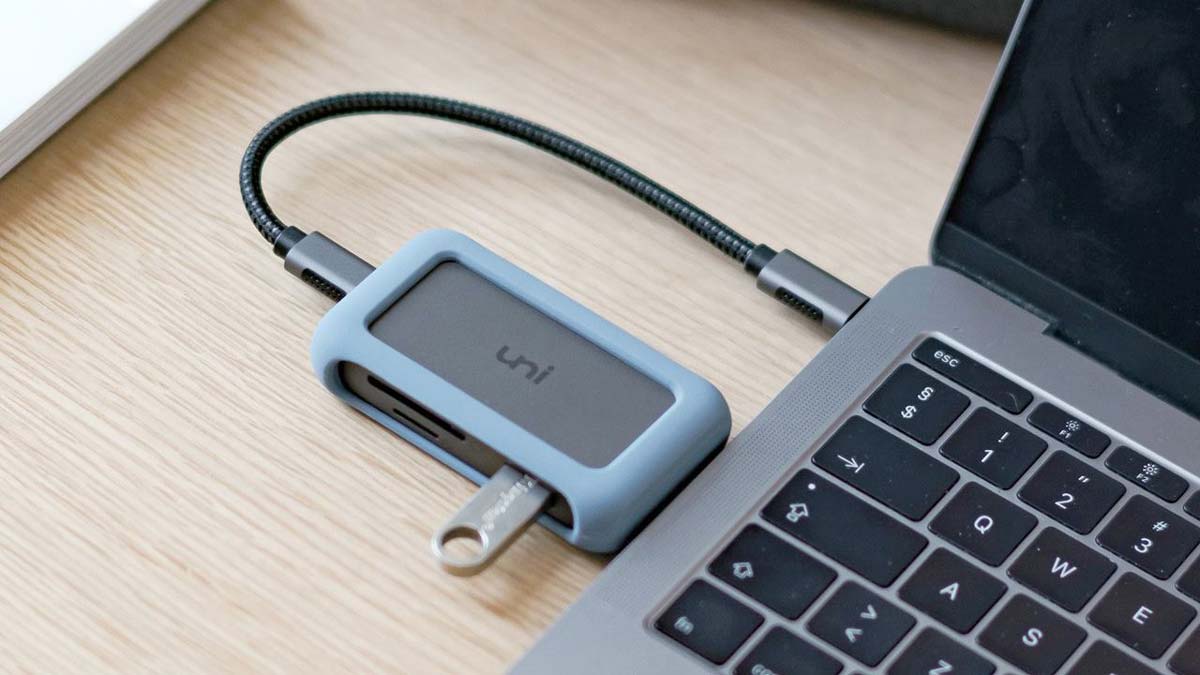
- 一个容量不小于 16GB 的 U 盘:速度越快越好!
第 1 步:下载 macOS 安装程序
要为 MacBook、iMac、Mac mini 或 Mac Studio 等设备创建一个可引导的启动 U 盘,首先需要下载完整的 macOS 安装程序,具体版本取决于你的需求以及设备的兼容性。
macOS 安装程序的大小通常为 10-15GB,下载之前请确保 Mac 有足够的硬盘剩余空间。
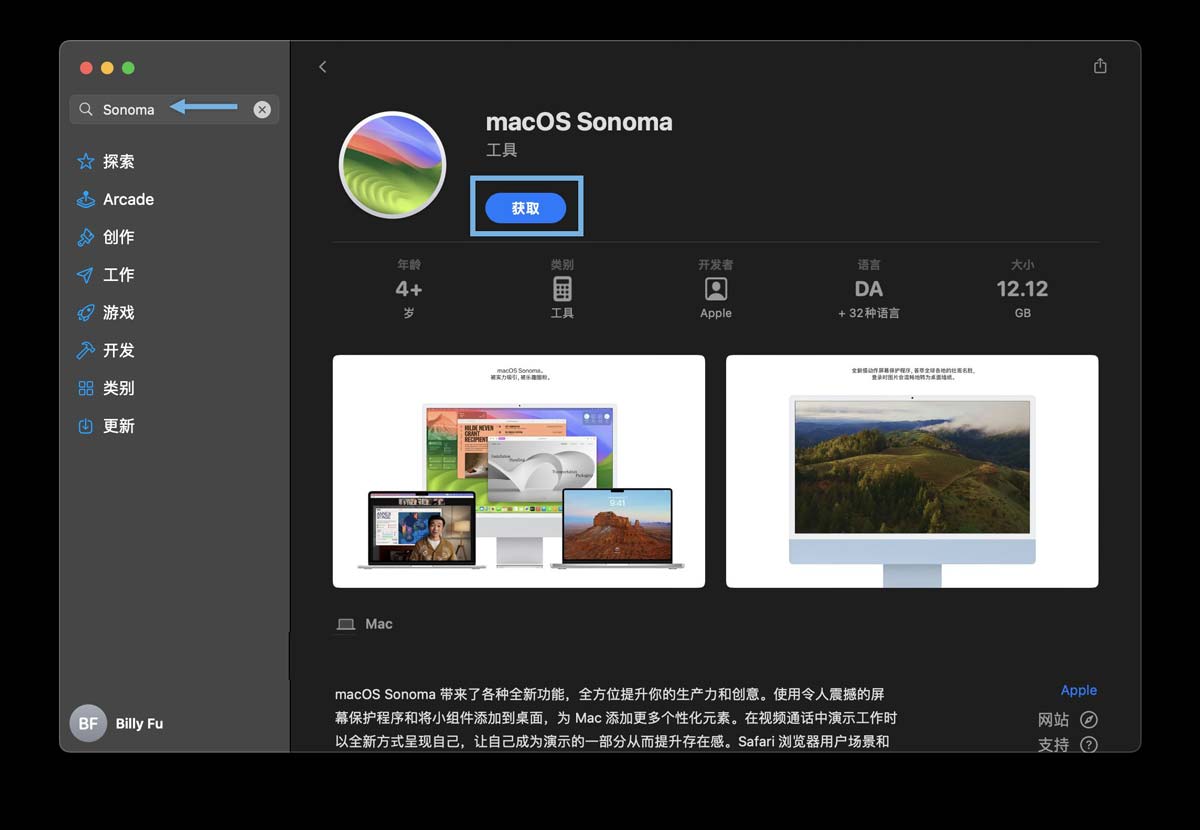
1、在 macOS 中打开「App Store」,搜索要下载的 macOS 版本,例如Sonoma。
在 App Store 获取 macOS 安装程序
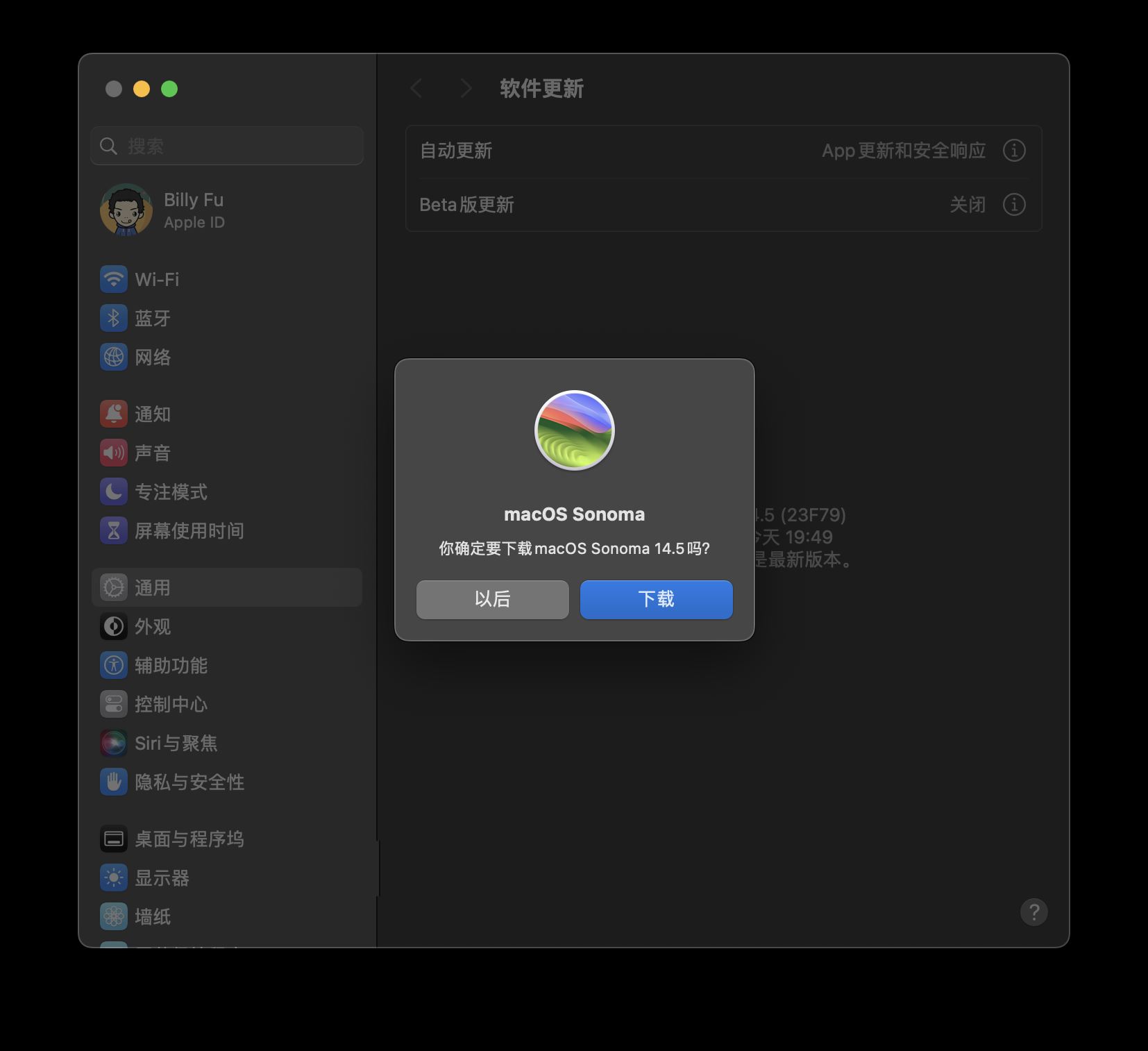
2、点击「获取」,在弹出窗口中选择「下载」。
下载 macOS 安装程序
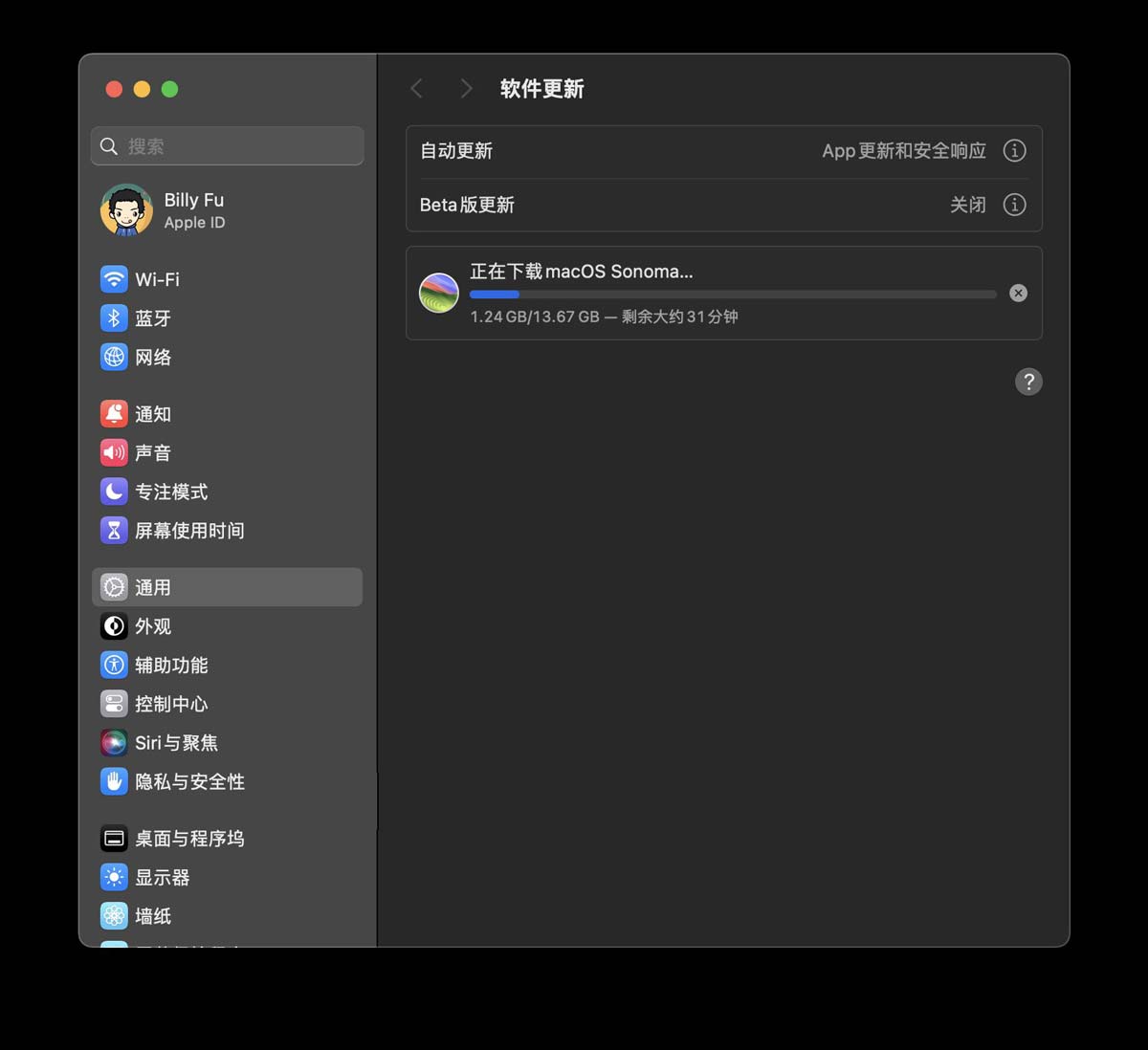
3、等待 macOS 安装程序下载到「应用程序」文件夹中,下载时间取决于你的网速。
等待 macOS 安装程序下载完成
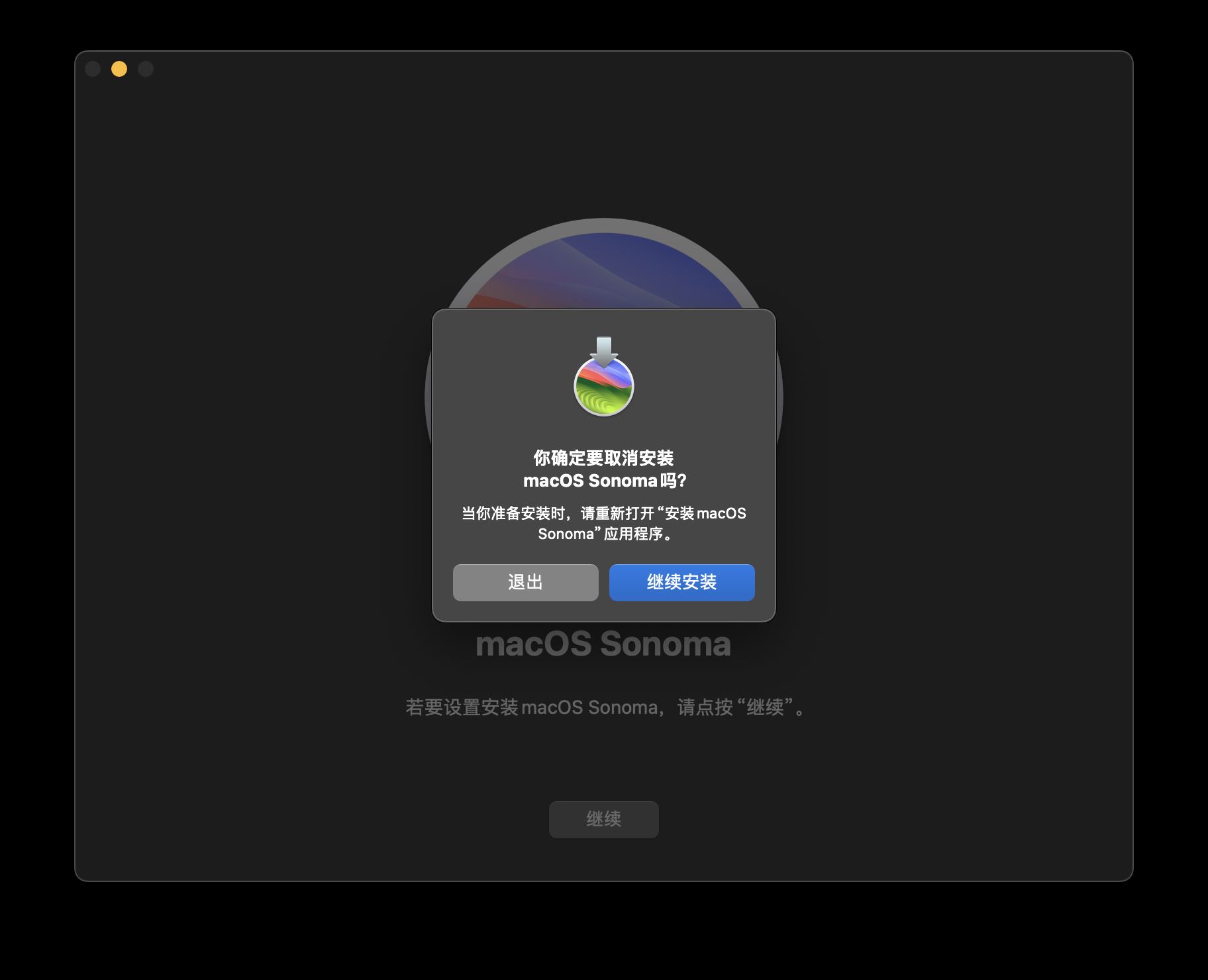
4、下载完成后,安装程序会自动启动。此时,可以在菜单栏上选择「退出安装 macOS」来退出安装程序。
退出 macOS 安装程序
如果在 App Store 中搜索不到旧版本的 macOS 安装程序,可以点击以下链接,获取所需的 macOS 版本:
要下载更早版本的 macOS 或 Mac OS X,可以使用 Apple 提供的直接下载链接:
较旧版本的 macOS 安装程序包含在 DMG 文件中。请双击挂载 DMG 文件,运行其中的 PKG 文件,并按照屏幕上的指示将安装程序解压到「应用程序」文件夹中。
推荐阅读:如何直接下载 macOS 系统镜像文件
第 2 步:写入 macOS 启动 U 盘
要创建可启动的 macOS 安装 U 盘,只需在「终端」中执行一条命令:
1、确保 U 盘的存储容量至少为 16 GB,并插入 Mac。
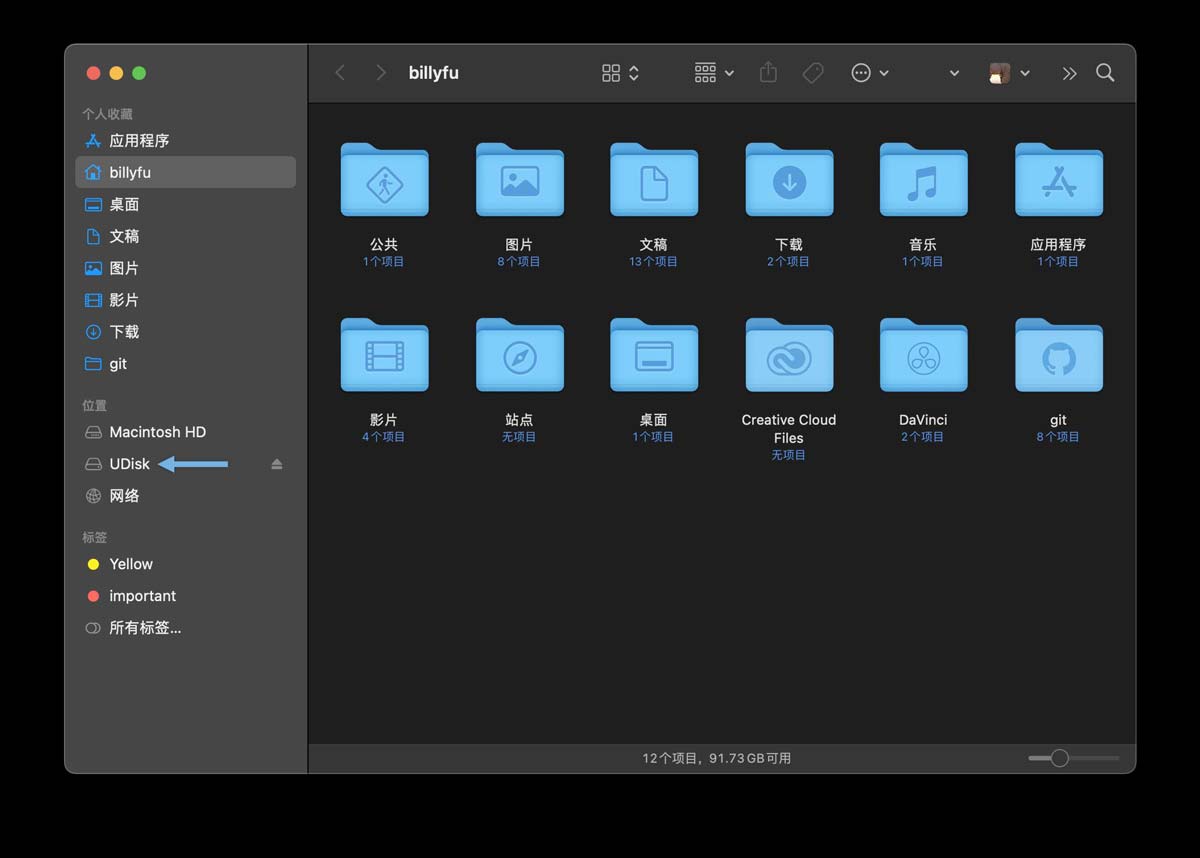
2、打开「访达」,并记录下侧边栏中的 U 盘驱动器名称。
在「访达」中查看 U 盘驱动器名称
写入 U 盘时会擦除其中的所有数据,请提前备份重要文件。
3、打开 Launchpad 启动台,选择「其他」,然后打开「终端」命令行界面。
4、按你下载的 macOS 安装程序版本,执行下表中对应的命令,记得要将命令中的Udisk替换为你实际的 U 盘驱动器名称:
| macOS版本 | 命令 |
|---|
| Sonoma | sudo /Applications/Install\ macOS\ Sonoma.app/Contents/Resources/createinstallmedia --volume /Volumes/Udisk | | Ventura | sudo /Applications/Install\ macOS\ Ventura.app/Contents/Resources/createinstallmedia --volume /Volumes/Udisk | | Monterey | sudo /Applications/Install\ macOS\ Monterey.app/Contents/Resources/createinstallmedia --volume /Volumes/Udisk | | Big Sur | sudo /Applications/Install\ macOS\ Big\ Sur.app/Contents/Resources/createinstallmedia --volume /Volumes/Udisk | | Catalina | sudo /Applications/Install\ macOS\ Catalina.app/Contents/Resources/createinstallmedia --volume /Volumes/Udisk | | Mojave | sudo /Applications/Install\ macOS\ Mojave.app/Contents/Resources/createinstallmedia --volume /Volumes/Udisk | | High Sierra | sudo /Applications/Install\ macOS\ High\ Sierra.app/Contents/Resources/createinstallmedia --volume /Volumes/Udisk | | Sierra | sudo /Applications/Install\ macOS\ Sierra.app/Contents/Resources/createinstallmedia --volume /Volumes/Udisk –applicationpath /Applications/Install\ macOS\ Sierra.app | | El Capitan | sudo /Applications/Install\ OS\ X\ El\ Capitan.app/Contents/Resources/createinstallmedia --volume /Volumes/Udisk –applicationpath /Applications/Install\ OS\ X\ El\ Capitan.app | | Yosemite | sudo /Applications/Install\ OS\ X\ Yosemite.app/Contents/Resources/createinstallmedia --volume /Volumes/Udisk –applicationpath /Applications/Install\ OS\ X\ Yosemite.app |
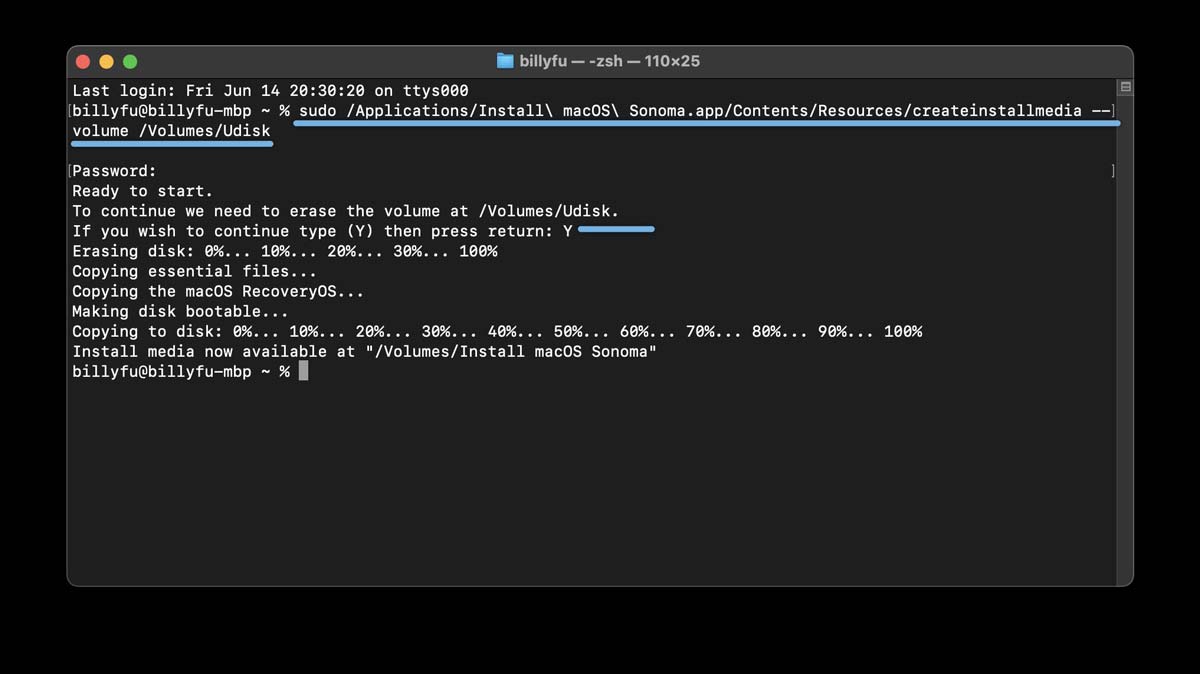
5、验证你的 macOS 管理员密码。
6、输 Y并按「回车」,开始写入 macOS 启动盘。
写入 macOS 启动 U 盘
7、写入完成后,退出「终端」,然后打开「访达」,并推出 U 盘。
如果在写入 U 盘时遇到以下错误,可以在「磁盘工具」中将 U 盘格式化成「Mac OS 扩展(日志式)」格式来解决:
APFS disks may not be used as bootable install media. An error occurred erasing the disk.
掌握了制作 macOS 启动盘的方法,你就拥有了应对系统问题和升级系统的利器。无论是全新安装、系统恢复还是多设备部署,只需要一个 U 盘就能帮助你轻松搞定。
推荐阅读:如何在 VMware 中安装 macOS Sonoma?
|



 發表於 2024-9-6 09:18:27