|
ubuntu下安装并配置vs code编译c++ 安装vs code ?
1
2
3
4 | sudo add-apt-repository ppa:ubuntu-desktop/ubuntu-make
sudo apt-get update
sudo apt-get install ubuntu-make
sudo umake web visual-studio-code
|
然后按a直接默认同意就可以。 安装插件
打开vs code后,按crtl + shift + p调出命令行,然后搜索c++,安装微软自己开发的那个。
同样可以安装c++ intellisense插件,用于自动补全代码。 配置launch.json和tasks.json 注意vs code只能打开源码所在的文件夹,而不是直接打开源码文件,否则下面将无法进行!
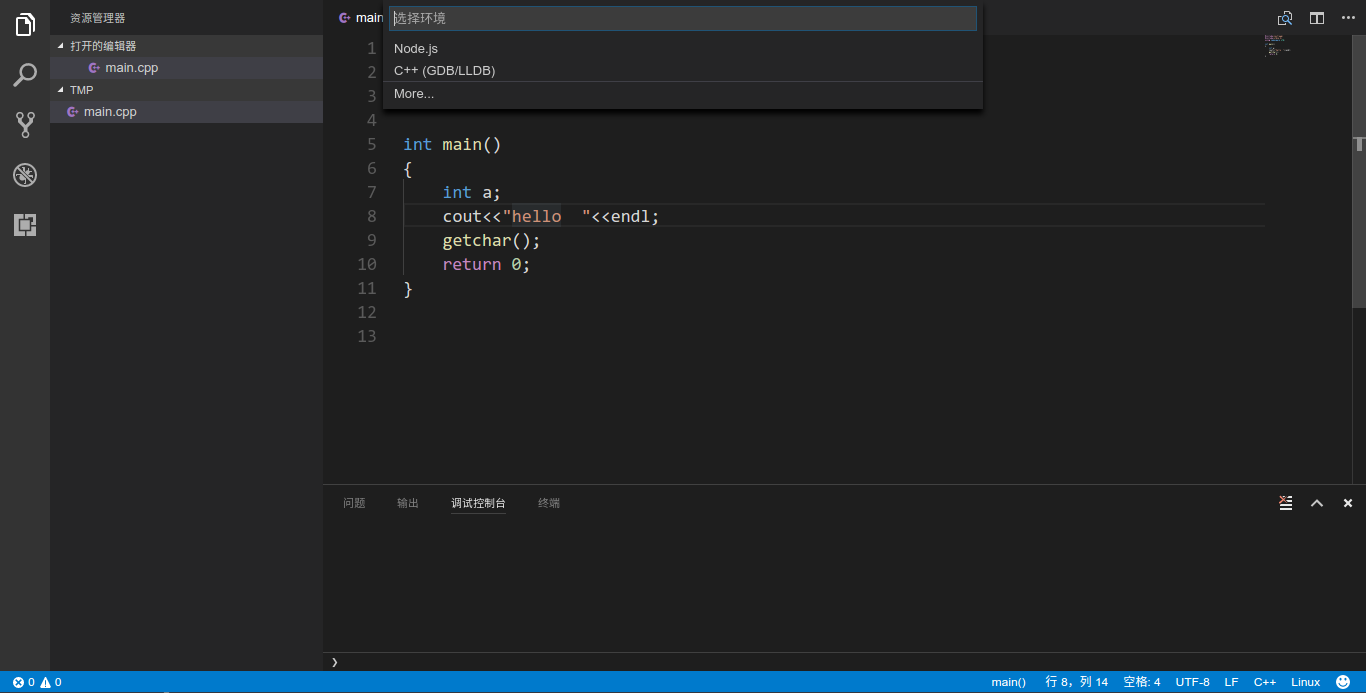
打开源码所在文件夹后,在该文件夹中打开源码。按f5键,选择c++,
然后会自动生成launch.json文件,下面只需要修改两个地方
将 ?
1 | "program": "enter program name, for example \${workspaceroot}/a.out",
|
改为 ?
1 | "program": "${workspaceroot}/a.out",
|
将 ?
1 | "cwd": "\${workspaceroot}",
|
改为 ?
1 | "cwd": "${workspaceroot}",
|
完整的launch.json ?
1
2
3
4
5
6
7
8
9
10
11
12
13
14
15
16
17
18
19
20
21
22
23
24 | {
"version": "0.2.0",
"configurations": [
{
"name": "(gdb) launch",
"type": "cppdbg",
"request": "launch",
"program": "${workspaceroot}/a.out",
"args": [],
"stopatentry": false,
"cwd": "${workspaceroot}",
"environment": [],
"externalconsole": true,
"mimode": "gdb",
"setupcommands": [
{
"description": "enable pretty-printing for gdb",
"text": "-enable-pretty-printing",
"ignorefailures": true
}
]
}
]
}
|
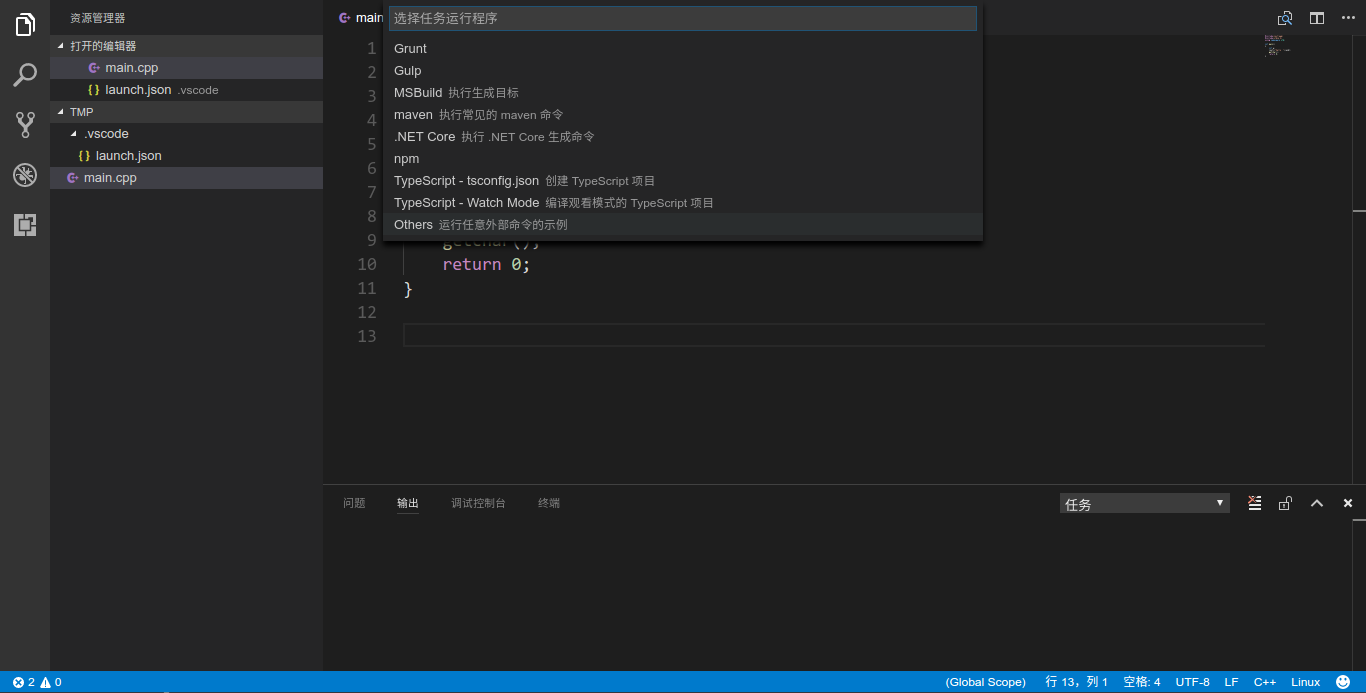
然后,调出命令行,输入task runner,选择others
此时将自动生成tasks.json
将其中的
改为
将
改为 ?
1 | "args": ["-g","${workspaceroot}/main.cpp"],
|
注意这里的main.cpp要和你当前路径的源码名称一致。
完整的tasks.json ?
1
2
3
4
5
6
7
8
9 | {
"version": "0.1.0",
"command": "g++",
"isshellcommand": true,
"args": ["-g","${workspaceroot}/main.cpp"],
"showoutput": "always"
}
|
运行测试
随便编写个代码 ?
1
2
3
4
5
6
7
8 | #include
using namespace std;
int main()
{
cout<<"hello vs code"<<endl;
return 0;
}
|
按crtl + shift + b构建,按f5运行,发现终端一闪而过,什么都没有输出。于是考虑windows下的办法。 ?
1
2
3
4
5
6
7
8
9
10 | #include
#include
using namespace std;
int main()
{
cout<<"hello vs code"<<endl;
system("pause");
return 0;
}
|
同样并没有卵用。那就换一种方式。 ?
1
2
3
4
5
6
7
8
9
10 | #include
#include
using namespace std;
int main()
{
cout<<"hello vs code"<<endl;
getchar();
return 0;
}
|
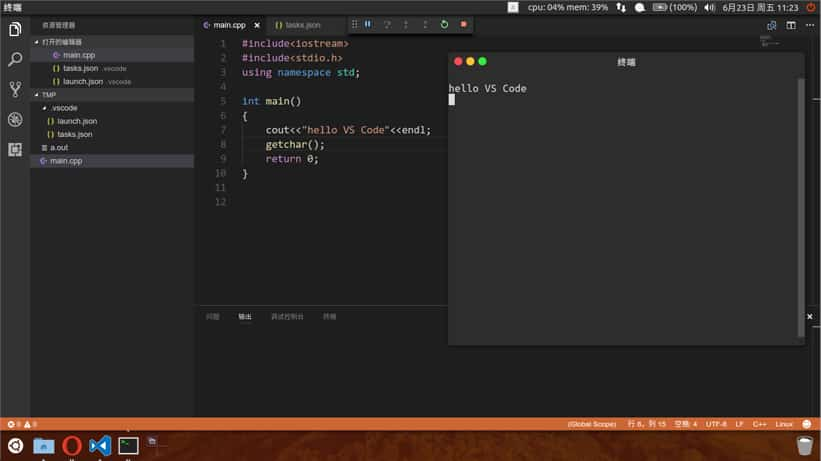
按crtl + shift + b构建,按f5运行,程序完美输出。有图为证,哈哈
后记:
期间在终端里执行了以下操作 ?
1 | sudo apt-get install clang
|
如果提示clang有错可以运行该命令,安装clang。
那么问题来了,是不是换个文件夹每次写个代码都得配置lauch.json和task.json文件呢?或者将.vscode文件夹复制到当前文件夹下?这样岂不是很麻烦,细思极恐
以上就是本文的全部内容,希望对大家的学习有所帮助,也希望大家多多支持。
原文链接:http://blog.csdn.net/qq_22186119/article/details/73618062 |



 發表於 2023-5-30 00:00:00