|
Shell 脚本在我们日常开发和学习都有举足轻重的地位,比如看一些开源项目,比如项目中的各式各样的脚本,对于促进生产力工具有很大帮助!
1、命令小技巧
1、-x命令进行跟踪调试执行
-
#!/bin/sh
-
-
num1=10
-
num2=20
-
if (($num1 <= $num2)); then
-
echo num1 lesser equal num2
-
else
-
echo num1 greater num2
-
fi
执行:
-
➜ note git:(master) ✗ sh -x /Users/fanhaodong/Desktop/project/test.sh
-
+ num1=10
-
+ num2=20
-
+ (( 10 <= 20 ))
-
+ echo num1 lesser equal num2
-
num1 lesser equal num2
2、-c命令 (执行命令参数)
-
➜ note git:(master) ✗ sh -c << EOF "
-
dquote> echo hello world
-
dquote> echo hello world2
-
dquote> "
-
heredoc> EOF
-
hello world
-
hello world2
3、使用set变量
-
#!/bin/sh
-
-
# -v Print shell input lines as they are read.
-
# -x Print commands and their arguments as they are executed.
-
# -e Exit immediately if a command exits with a non-zero status.
-
set -ex
-
-
echo "hello world"
-
-
exit 1
执行
-
➜ makefile git:(master) ✗ sh ./main.sh
-
+ echo 'hello world'
-
hello world
-
+ exit 1
-
➜ makefile git:(master) ✗ echo $?
-
1
帮助可以看:sh -c "help set"
2、语法小技巧
1、${}和$适用场景
1)$ 可能有语法歧义,所以一般使用${}
-
#!/bin/sh
-
s="my name is s"
-
echo 输出: $sa
-
echo 输出: ${s}a
-
-
#输出:
-
#输出: my name is sa
2、((cmd))
-
num1=10
-
num2=20
-
if (($num1 <= $num2)); then
-
echo num1 lesser equal num2
-
fi
3、cat[>>|>][file]<
如果重定向的操作符是<<-,那么分界符(EOF)所在行的开头部分的制表符(Tab)都将被去除。这可以解决由于脚本中的自然缩进产生的制表符。
-
➜ test cat > glide.yaml << EOF
-
heredoc> name: tom
-
heredoc> age: 10
-
heredoc> hobby:
-
heredoc> - football
-
heredoc> EOF
-
-
➜ test cat glide.yaml
-
name: tom
-
age: 10
-
hobby:
-
- football
4、 单引号,双引号,没有引号的区别
-
#!/bin/sh
-
-
name="tom"
-
-
f1(){
-
echo "f1 hello world
-
my name is $name
-
"
-
}
-
-
f2(){
-
echo 'f2 hello world
-
my name is $name
-
'
-
}
-
-
f3(){
-
echo f3 hello world
-
my name is $name
-
}
-
-
f1
-
f2
-
f3
输出
-
➜ makefile git:(master) ✗ sh ./main.sh
-
f1 hello world
-
my name is tom
-
-
f2 hello world
-
my name is $name
-
-
f3 hello world
-
./main.sh: line 19: my: command not found
可以看到
-
双引号会自动对变量赋值
-
单引号不会对变量进行赋值等操作
-
不加引号对于换行等功能无法实现!只能使用换行符
-
f3(){
-
echo f3 hello world \
-
my name is $name
-
}
5、特殊变量
-
$0: 当前脚本的文件名
-
$n : 传递给脚本或函数的参数。n 是一个数字,表示第几个参数。例如,第一个参数是$1,第二个参数是$2。
-
$#: 传递给脚本或函数的参数个数。
-
$*: 传递给脚本或函数的所有参数。
-
$@: 传递给脚本或函数的所有参数(推荐使用这个),当使用"" 双引号引用是$*会变成字符串而不是数组
-
$?: 上个命令的退出状态,或函数的返回值。一般情况下,大部分命令执行成功后会返回 0,失败返回 1。
-
$$: 当前Shell进程ID。对于 Shell 脚本,就是这些脚本所在的进程ID。
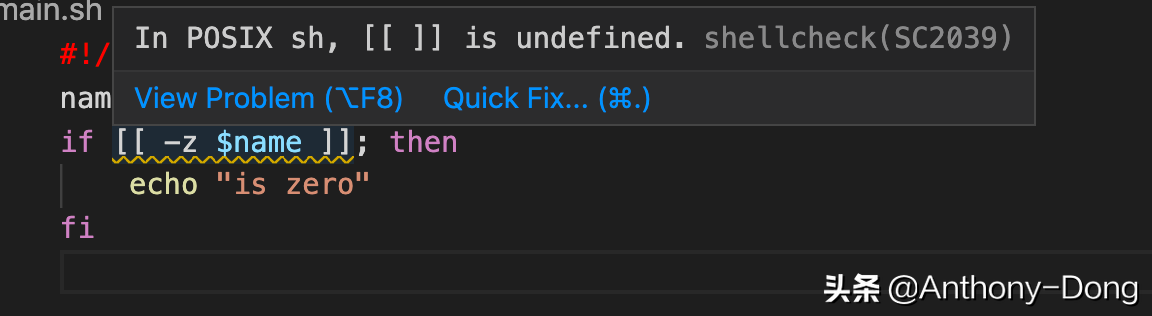
6、[[]]和[]标准 以及基本语法规范
具体规范:
-
#!/bin/sh
-
name=""
-
if [[ -z $name ]]; then
-
echo "is zero"
-
fi
执行后发现
7、/bin/sh 与 /bin/bash 的区别
/bin/sh 与 /bin/bash 的区别
3、获取命令结果$(cmd)
有两种写法,一种是$()这个并不是所有的shell都支持,但是比较直观, 另外一种是"``" (它可是适用更多的平台)
-
#!/bin/sh
-
echo `ls -a /Users/fanhaodong/note`
-
echo $(ls -a /Users/fanhaodong/note)
输出:
-
. .. .DS_Store 1714.jpg docker-rocketmq-cluster gridea-home hexo-home note pdf vuepress-starter
-
. .. .DS_Store 1714.jpg docker-rocketmq-cluster gridea-home hexo-home note pdf vuepress-starter
4、输入输出重定向2>&1
使用
程序中经常有,标准输出,但是还有错误输出,因此需要合并到一个流中
其实Go的程序中正执行脚本的时候可以指定,标准输出和错误输出
-
command := exec.Command(shell, "-c", cmd)
-
command.Stdout = os.Stdout
-
command.Stderr = os.Stderr
使用的时候:
-
默认为标准输出重定向,与 1> 相同
-
2>&1 意思是把 标准错误输出 重定向到 标准输出.
-
&>file 意思是把标准输出和标准错误输出 都重定向到文件file中
例如:
-
command >out.file 2>&1&
command >out.file是将command的标准输出重定向到out.file文件,即输出内容不打印到屏幕上,而是输出到out.file文件中。2>&1 是将标准出错重定向到标准输出,这里的标准输出已经重定向到了out.file文件,即将标准出错也输出到out.file文件中。最后一个&,是让该命令在后台执行。
5、If语句
if 其实就是test 命令
1、格式
1) 换行写
-
if [ condition ]; then
-
# body
-
elif [ condition ]; then
-
# body
-
else
-
# body
-
fi
2)非换行写
-
if [ -f "/Users/fanhaodong/note/note/Makefile1" ]; then echo 111 ; echo 222 ;elif [ -f "/Users/fanhaodong/note/note/README.md" ]; then echo 333 ; echo 4444 ; else echo 555 ; echo 666 ; fi
2、结果获取/判断
结果输出0 ,表示为真,可以通过$? 来获取结果
3、例如调试条件
-
➜ note git:(master) ✗ test "abc"!="def"
-
➜ note git:(master) ✗ echo $?
-
0
4、测试文件是否存在
-
如果你要判断一个文件是否存在,只需要-e 即可,输出0 表示文件存在 (不在判断类型的时候推荐使用这个)
-
如果你要判断一个文件是否为文件夹,并且判断是否存在,只需要-d 即可
-
如果你要判断一个文件是否为常规文件 ,并且判断是否存在,只需要-f 即可
-
-L filename 如果 filename为符号链接,则为真
-
[root@019066c0cd63 ~]# ls -al
-
lrwxrwxrwx 1 root root 5 Mar 1 09:49 c.txt -> a.txt
-
[root@019066c0cd63 ~]# [ -L "./c.txt" ]
-
[root@019066c0cd63 ~]# echo $?
-
0
-
-r filename 如果 filename可读,则为真
-
-w filename 如果 filename可写,则为真
-
-x filename 如果 filename可执行,则为真
-
-s filename 如果文件长度不为0,则为真
-
-h filename 如果文件是软链接,则为真
-
➜ note git:(master) ✗ [ -f "/Users/fanhaodong/note/note/Makefile" ]
-
➜ note git:(master) ✗ echo $?
-
0
-
➜ note git:(master) ✗ [ -f "/Users/fanhaodong/note/note/Makefile1" ]
-
➜ note git:(master) ✗ echo $?
-
1
5、字符串操作
字符串推荐加"" 进行定义
1) 判断字符串是否为空-z (zero)么
-
#!/bin/sh
-
-
str=""
-
if [ -z "${str}" ]; then
-
echo str is empty
-
fi
-
# str is empty
2)判断两个字符串是否相同
-
#!/bin/sh
-
-
str1="str"
-
str2="str2"
-
-
if [ "$str1" = "$str2" ]; then
-
echo str1 is equal str2
-
else
-
echo str1 is not equal str2
-
fi
-
-
# str1 is not equal str2
4、测试一个命令是否存在command -v $#
-
#!/bin/sh
-
cmd=go
-
if [ `command -v $cmd` ]; then
-
echo $cmd command is exists
-
else
-
echo $cmd command not exists
-
fi
-
# go command is exists
5、获取字符串长度${#var}
-
#!/bin/sh
-
str="hello "
-
str1=hello
-
echo str 的长度是 ${#str}
-
echo str1 的长度是 ${#str1}
-
-
#str 的长度是 8
-
#str1 的长度是 5
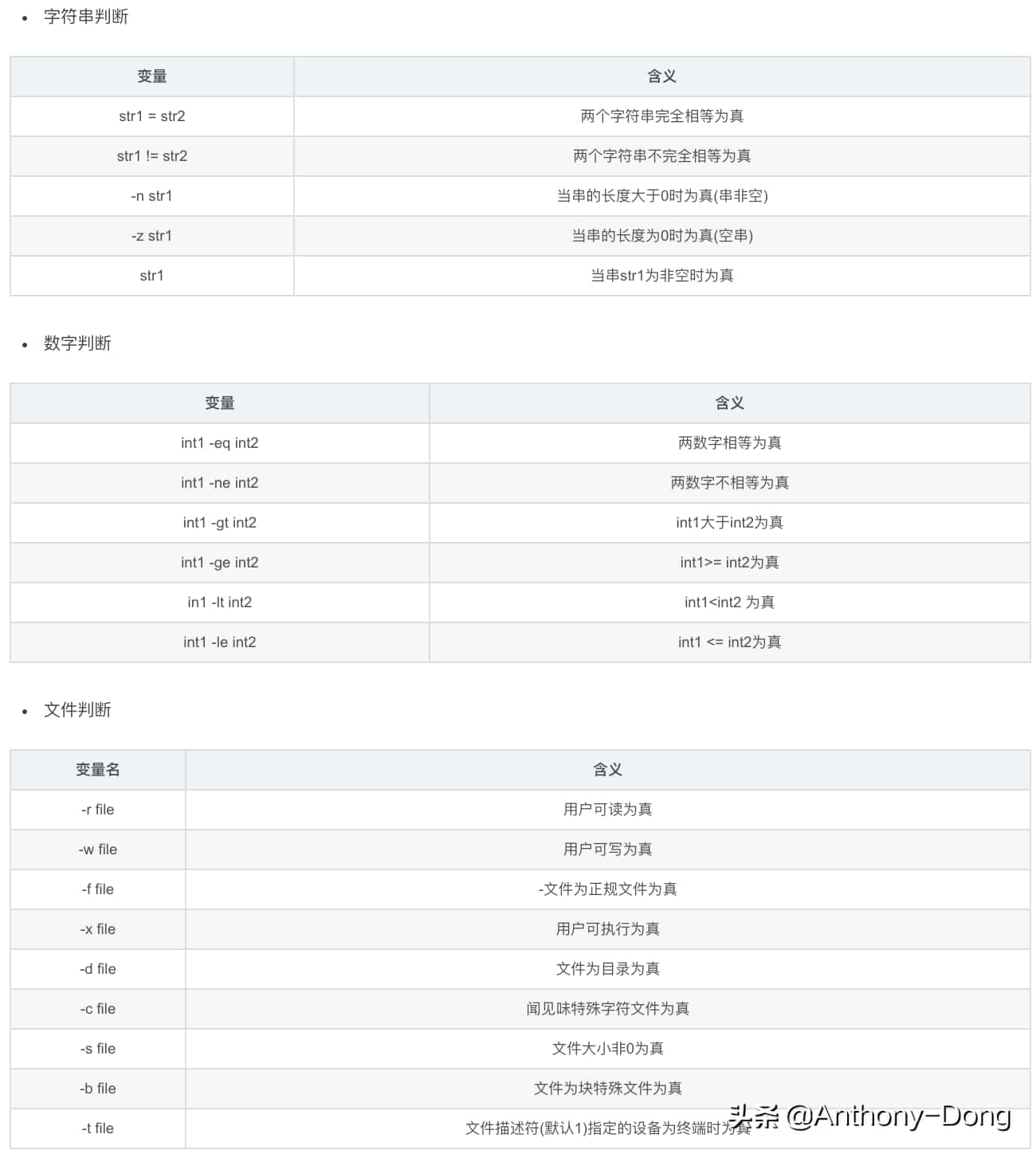
6、数字比较
-
-eq 等于
-
-ne 不等于
-
-gt 大于
-
-ge 大于等于
-
-lt 小于
-
-le 小于等于
-
#!/bin/sh
-
-
num1=10
-
num2=20
-
if (($num1 <= $num2)); then
-
echo num1 lesser equal num2
-
fi
-
-
if [ $num1 -le $num2 ]; then
-
echo num1 lesser equal num2
-
fi
-
-
# num1 lesser equal num2
-
# num1 lesser equal num2
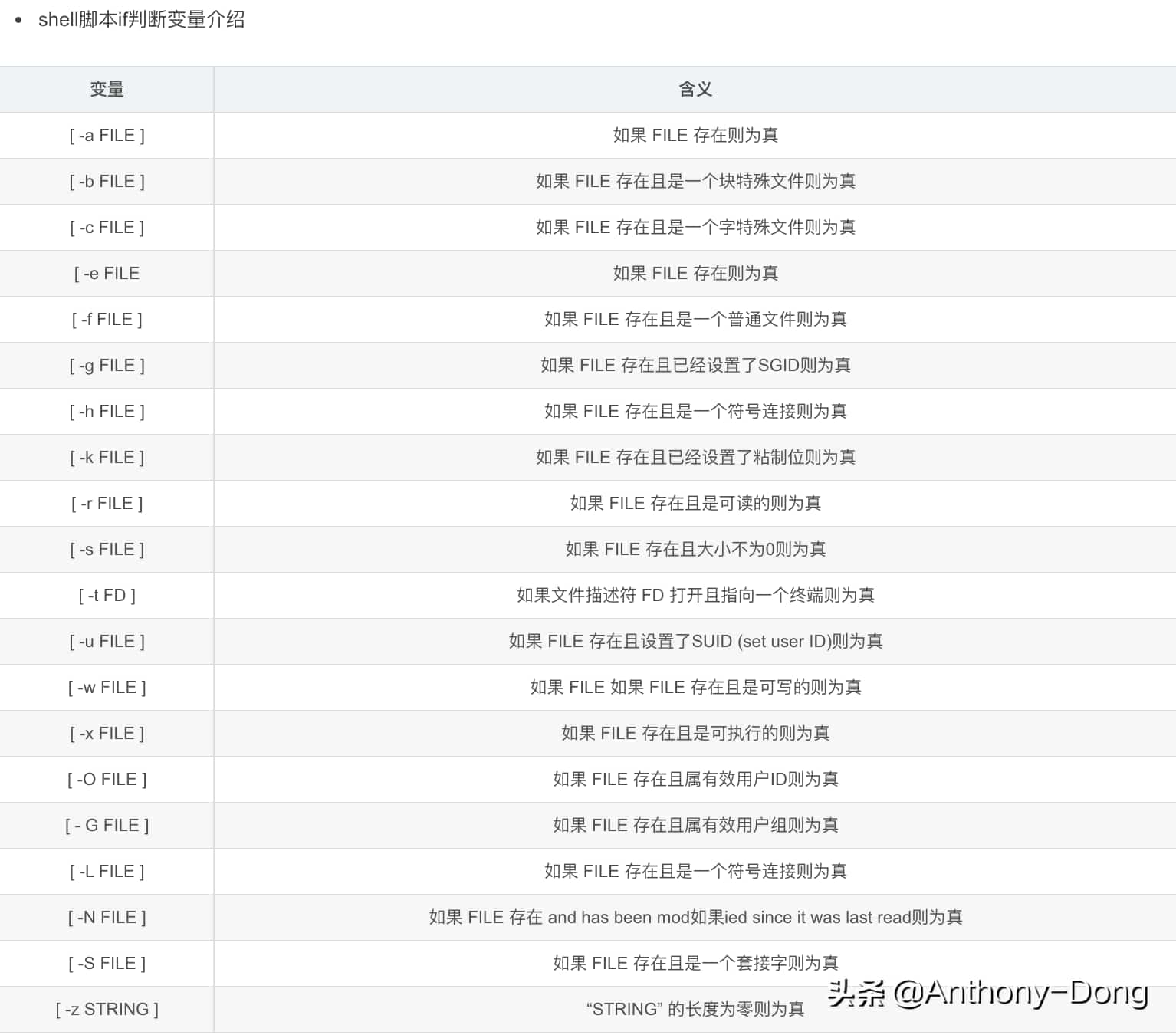
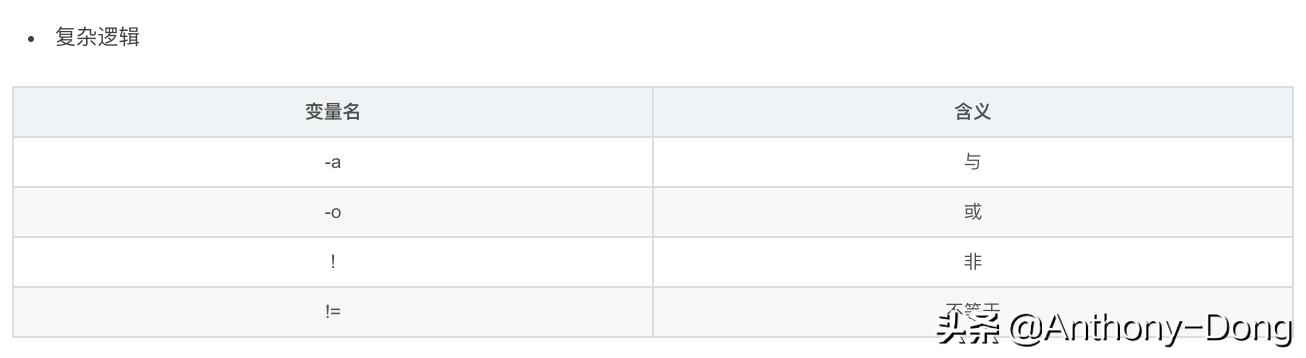
7、shell脚本中if判断'-a' - '-z'含义
6、for循环
1、forin; do;;done
-
#!/bin/bash
-
-
for item in {1..5}; do echo "$item"; done
-
-
[Running] /bin/bash "/Users/fanhaodong/note/note/Linux/shell/file.sh"
-
1
-
2
-
3
-
4
-
5
2、for((x=0; x<10; x++));do;; done
-
for((x=0; x<10; x++));do echo "$x" ;done
7、awk
1、例子
demo
-
[root@19096dee708b data]# cat demo.txt
-
11 22
-
111
-
22 33
脚本
-
[root@19096dee708b data]# awk -F ':' 'BEGIN {print "start"} /:/ {printf "do1 $1=%s $2=%s\n",$1,$2} {print "do2 .."} END {print "e nd"}' demo.txt
-
start
-
do1 $1=11 $2=22
-
do2 ..
-
do2 ..
-
do1 $1=22 $2=33
-
do2 ..
-
e nd
2、格式
-
awk -arg1 x1 -arg2 x2 'BEGIN {开始执行脚本} 条件 {过程1} {过程2} END{循环体执行完后最后执行}'
-
其中条件执行正则表达式、判断等
-
还支持一些内置函数 , 一些内置变量!
-
过程中支持if函数
8、sed
首先gun的sed函数和mac的set是有些不同的!具体看:
-
https://superuser.com/questions/307165/newlines-in-sed-on-mac-os-x
具体写在其他文档上,目前使用的多个命令也未分享!
原文地址:https://www.toutiao.com/a7041836020135887368/ |



 發表於 2024-2-20 00:00:00