|
一、apache简介
apache http server(简称apache)是apache软件基金会的一个开放源代码的网页服务器软件,可以在大多数电脑操作系统中运行,由于其跨平台和安全性(尽管不断有新的漏洞被发现,但由于其开放源代码的特点,漏洞总能被很快修补。因此总合来说,其安全性还是相当高的。)。被广泛使用,是最流行的web服务器软件之一。它快速、可靠并且可通过简单的api扩充,将perl/python等解释器编译到服务器中。
软件图标
二、安装apache httpd
安装httpd以配置web服务器, http使用80 / tcp
?
|
1
2
3
4
5
6
7
8
9
10
11
12
13
14
15
16
17
18
19
20
21
22
23
24
25
26
27
28
29
30
31
32
33
34
35
|
[1] 安装 httpd.
[root@linuxprobe ~]
[root@linuxprobe ~]
[2] 配置httpd,将服务器名称替换为您自己的环境
[root@linuxprobe ~]
serveradmin root@linuxprobe.org
servername www.linuxprobe.org:80
allowoverride all
directoryindex index.html index.cgi index.php
servertokens prod
keepalive on
[root@linuxprobe ~]
[root@linuxprobe ~]
[3] 如果firewalld正在运行,请允许http服务。,http使用80 / tcp
[root@linuxprobe ~]
success
[root@linuxprobe ~]
success
[4] 创建一个html测试页,并使用web浏览器从客户端pc访问它。如果显示以下页面,是正确的
[root@linuxprobe ~]
<html>
<body>
<div style="width: 100%; font-size: 40px; font-weight: bold; text-align: center;">
welcome access linuxprobe.org,this is test page!
</div>
</body>
</html>
|
三、支持perl
启用cgi执行并使用perl脚本
?
|
1
2
3
4
5
6
7
8
9
10
11
12
13
14
15
16
17
18
19
20
21
22
23
24
25
26
27
28
29
30
|
[1] 安装perl.
[root@linuxprobe ~]
[2] 默认情况下,在“/var/www/cgi-bin”目录下允许cgi。
可以使用perl scripts放在目录下。然而,它下面的所有文件都被处理为cgi。
[root@linuxprobe ~]
247: scriptalias /cgi-bin/ "/var/www/cgi-bin/"
[3] 如果你想允许在其他目录中的cgi,配置如下。
例如,在“/var/www/html/cgi-enabled”中允许。
[root@linuxprobe ~]
<directory "/var/www/html/cgi-enabled">
options +execcgi
addhandler cgi-script .cgi .pl
</directory>
[root@linuxprobe ~]
[4] 如果selinux被启用,并且允许cgi在不是像上面[3]的默认目录下,更改规则如下。
[root@linuxprobe ~]
[root@linuxprobe ~]
[5] 创建一个cgi测试页面,并使用web浏览器从客户端pc访问它。如果显示以下页面,说明配置正确。
[root@linuxprobe ~]
print "content-type: text/html\n\n";
print "<html>\n<body>\n";
print "<div style=\"width: 100%; font-size: 40px; font-weight: bold; text-align: center;\">\n";
print "cgi test page";
print "\n</div>\n";
print "</body>\n</html>\n";
[root@linuxprobe ~]
|
四、支持php
配置httpd以使用php脚本
[1] 安装php.
?
|
1
2
3
4
5
|
[root@linuxprobe ~]
[root@linuxprobe ~]
date.timezone = "asia/shanghai"
[root@linuxprobe ~]
|
[2] 创建一个php测试页面,并使用web浏览器从客户端pc访问它。如果显示以下页面,它是确定。
?
|
1
2
3
4
5
6
7
8
9
10
|
[root@linuxprobe ~]
<html>
<body>
<div style="width: 100%; font-size: 40px; font-weight: bold; text-align: center;">
<?php
print date("y/m/d");
?>
</div>
</body>
</html>
|
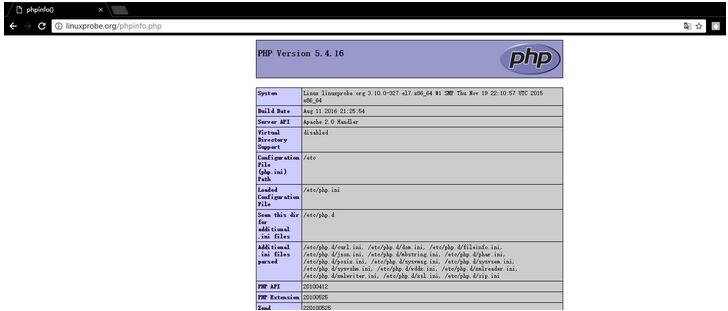
[3] 创建phpinfo测试页,确认是都开启php支持
[root@linuxprobe ~]# echo "<?php phpinfo(); ?>" > /var/www/html/phpinfo.php
五、支持ruby
配置httpd以将ruby脚本用作cgi
[1] 安装ruby.
[root@linuxprobe ~]# yum -y install ruby
[2] 默认情况下,在“/var/www/cgi-bin”目录下允许cgi。
可以使用perl scripts放在目录下。然而,它下面的所有文件都被处理为cgi。
?
|
1
2
3
|
[root@linuxprobe ~]
247: scriptalias /cgi-bin/ "/var/www/cgi-bin/"
|
[3] 如果你想允许在其他目录中的cgi,配置如下。
例如,在“/var/www/html/cgi-enabled”中允许。
?
|
1
2
3
4
5
6
7
8
|
[root@linuxprobe ~]
<directory "/var/www/html/cgi-enabled">
options +execcgi
addhandler cgi-script .rb
</directory>
[root@linuxprobe ~]
|
[4] 如果selinux被启用,并且允许cgi在不是像上面[3]的默认目录下,更改规则如下。
?
|
1
2
3
|
[root@linuxprobe ~]
[root@linuxprobe ~]
|
[5] create a cgi test page and access to it from client pc with web browser. it's ok if following page is shown.
?
|
1
2
3
4
5
6
7
8
9
10
|
[root@linuxprobe ~]
print "content-type: text/html\n\n"
print "<html>\n<body>\n"
print "<div style=\"width: 100%; font-size: 40px; font-weight: bold; text-align: center;\">\n"
print "ruby script test page"
print "\n</div>\n"
print "</body>\n</html>\n"
[root@linuxprobe ~]
|
六、支持python
启用cgi执行并使用python脚本
?
|
1
2
3
4
5
6
7
8
9
10
11
12
13
14
15
16
17
18
19
20
21
22
23
24
25
26
27
28
29
30
31
32
33
34
35
36
37
|
[1] 安装python.
[root@linuxprobe ~]
[2] 默认情况下,在“/var/www/cgi-bin”目录下允许cgi。
可以使用perl scripts放在目录下。然而,它下面的所有文件都被处理为cgi。
[root@linuxprobe ~]
247: scriptalias /cgi-bin/ "/var/www/cgi-bin/"
[3] 如果你想允许在其他目录中的cgi,配置如下。
例如,在“/var/www/html/cgi-enabled”中允许。
[root@linuxprobe ~]
<directory "/var/www/html/cgi-enabled">
options +execcgi
addhandler cgi-script .py
</directory>
[root@linuxprobe ~]
[4] 如果selinux被启用,并且允许cgi在不是像上面[3]的默认目录下,更改规则如下。
[root@linuxprobe ~]
[root@linuxprobe ~]
[5] create a cgi test page and access to it from client pc with web browser. it's ok if following page is shown.
[root@linuxprobe ~]
print "content-type: text/html\n\n"
print "<html>\n<body>\n"
print "<div style=\"width: 100%; font-size: 40px; font-weight: bold; text-align: center;\">\n"
print "python script test page"
print "\n</div>\n"
print "</body>\n</html>\n"
[root@linuxprobe ~]
|
七、支持userdir
启用userdir,用户可以使用此设置创建网站
?
|
1
2
3
4
5
6
7
8
9
10
11
12
13
14
15
16
17
18
19
20
21
22
23
24
25
26
27
28
29
30
31
32
33
34
35
|
[1] 配置 httpd.
[root@linuxprobe ~]
userdir public_html
<directory "/home/*/public_html">
allowoverride all
options none
require method get post options
</directory>
[root@linuxprobe ~]
[2] 创建一个测试页,使用普通用户通过客户端pc与web浏览器和访问它,如果显示以下页面,就是正确的
[cent@linuxprobe ~]$ mkdir public_html
[cent@linuxprobe ~]$ chmod 711 /home/cent
[cent@linuxprobe ~]$ chmod 755 /home/cent/public_html
[cent@linuxprobe ~]$ vi ./public_html/index.html
<html>
<body>
<div style="width: 100%; font-size: 40px; font-weight: bold; text-align: center;">
userdir test page
</div>
</body>
</html>
|
浏览器访问:http://linuxprobe.org/~wang/,出现如下界面
八、设置虚拟主机
配置虚拟主机以使用多个域名。
以下示例在域名为[linuxprobe.org],虚拟域名为[virtual.host(根目录[/home/wang/public_html]]的环境中设置。
必须为此示例设置userdir的设置
?
|
1
2
3
4
5
6
7
8
9
10
11
12
13
14
15
16
17
18
19
20
21
22
23
24
25
26
27
28
29
30
31
|
[1] 配置虚拟主机
[root@linuxprobe ~]
<virtualhost *:80>
documentroot /var/www/html
servername www.linuxprobe.org
</virtualhost>
<virtualhost *:80>
documentroot /home/cent/public_html
servername www.virtual.host
serveradmin webmaster@virtual.host
errorlog logs/virtual.host-error_log
customlog logs/virtual.host-access_log combined
</virtualhost>
[root@linuxprobe ~]
[2]创建测试页并使用web浏览器从客户端计算机访问它。如果显示以下页面,则是正确的:
[cent@linuxprobe ~]$ vi ~/public_html/virtual.php
<html>
<body>
<div style="width: 100%; font-size: 40px; font-weight: bold; text-align: center;">
virtual host test page
</div>
</body>
</html>
[3]如果访问测试时看不到相应页面,可通过下面命令进行测试:
[root@linuxprobe ~]
[root@linuxprobe ~]
|
九、创建ssl证书
创建自己的ssl证书。但是,如果您使用您的服务器作为业务,最好购买和使用来自verisigh的正式证书等。
?
|
1
2
3
4
5
6
7
8
9
10
11
12
13
14
15
16
17
18
19
20
21
22
23
24
25
26
27
28
29
30
31
32
33
34
35
36
37
38
39
40
41
42
|
[root@linuxprobe ~]
cert.pem certs/
[root@linuxprobe ~]
[root@linuxprobe certs]
umask 77 ; \
/usr/bin/openssl genrsa -aes128 2048 > server.key
generating rsa private key, 2048 bit long modulus
...............................................................+++
....................................................................................................+++
e is 65537 (0x10001)
enter pass phrase:
verifying - enter pass phrase:
[root@linuxprobe certs]
enter pass phrase for server.key:
writing rsa key
[root@linuxprobe certs]
umask 77 ; \
/usr/bin/openssl req -utf8 -new -key server.key -out server.csr
you are about to be asked to enter information that will be incorporated
into your certificate request.
what you are about to enter is what is called a distinguished name or a dn.
there are quite a few fields but you can leave some blank
for some fields there will be a default value,
if you enter '.', the field will be left blank.
-----
country name (2 letter code) [xx]:cn
state or province name (full name) []:shanghai
locality name (eg, city) [default city]:shanghai
organization name (eg, company) [default company ltd]:linuxprobe
organizational unit name (eg, section) []:devops
common name (eg, your name or your server's hostname) []:linuxprobe.org
email address []:root@linuxprobe.org
please enter the following 'extra' attributes
to be sent with your certificate request
a challenge password []:
an optional company name []:
[root@linuxprobe certs]
signature ok
subject=/c=cn/st=shanghai/l=shanghai/o=linuxprobe/ou=devops/cn=linuxprobe.org/emailaddress=root@linuxprobe.org
getting private key
|
十、配置ssl
[1] 配置ssl.
?
|
1
2
3
4
5
6
7
8
9
10
11
12
13
14
|
[root@linuxprobe ~]
[root@linuxprobe ~]
documentroot "/var/www/html"
servername linuxprobe.org:443
sslprotocol -all +tlsv1 +tlsv1.1 +tlsv1.2
sslcertificatefile /etc/pki/tls/certs/server.crt
sslcertificatekeyfile /etc/pki/tls/certs/server.key
[root@www ~]
|
[2] 如果firewalld正在运行,请允许https服务。 https使用443 / tcp
?
|
1
2
3
4
|
[root@www ~]
success
[root@www ~]
success
|
[3] 使用web浏览器通过https从客户端计算机访问测试页。下面的示例是fiorefix。显示以下屏幕,因为证书是自己创建的,但它没有ploblem,继续下一步。
十一、启用基本身份验证
启用基本身份验证以限制特定网页的访问
[1]例如,在目录[/var/www/html/auth-basic]下设置基本身份验证设置。
?
|
1
2
3
4
5
6
7
8
9
10
11
12
13
14
15
16
17
18
19
20
21
22
23
24
25
26
27
28
29
|
[root@linuxprobe ~]
<directory /var/www/html/auth-basic>
authtype basic
authname "basic authentication"
authuserfile /etc/httpd/conf/.htpasswd
require valid-user
</directory>
[root@linuxprobe ~]
new password:
re-type new password:
adding password for user wang
[root@linuxprobe ~]
[root@linuxprobe ~]
[root@linuxprobe ~]
<html>
<body>
<div style="width: 100%; font-size: 40px; font-weight: bold; text-align: wanger;">
test page for basic auth
</div>
</body>
</html>
|
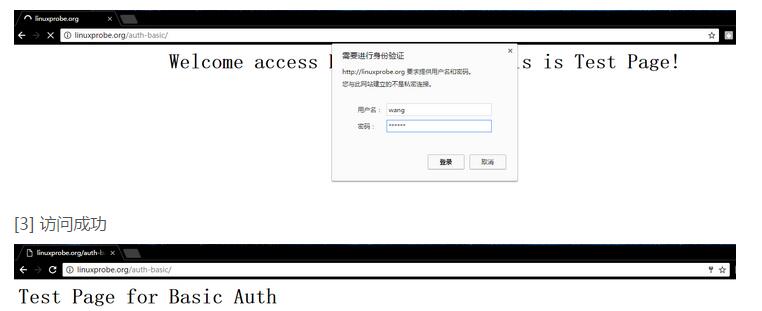
[2] 使用web浏览器从客户端计算机访问测试页。然后需要认证,如下所示作为设置,用在[1]中添加的用户回答
十二、基本auth + pam
限制特定网页上的访问,并使用os用户通过ssl连接进行身份验证
[1] 创建证书,请参照上文所述。
[2] 例如,在[/var/www/html/auth-pam]目录下设置basic auth。
?
|
1
2
3
4
5
6
7
8
9
10
11
12
13
14
15
16
17
18
19
20
21
22
23
24
25
26
27
28
|
[root@linuxprobe ~]
[root@linuxprobe ~]
<directory /var/www/html/auth-pam>
sslrequiressl
authtype basic
authname "pam authentication"
authbasicprovider external
authexternal pwauth
require valid-user
</directory>
[root@linuxprobe ~]
[root@linuxprobe ~]
<html>
<body>
<div style="width: 100%; font-size: 40px; font-weight: bold; text-align: center;">
test page for pam auth
</div>
</body>
</html>
[root@linuxprobe ~]
|
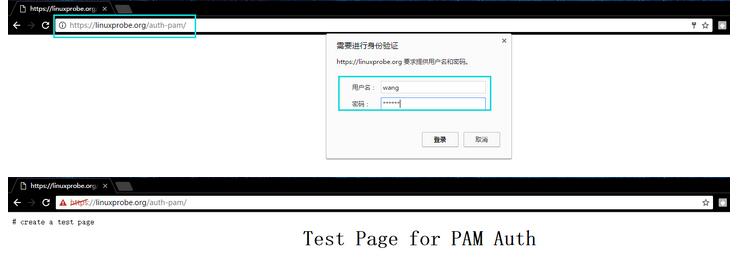
[3] 在客户端上使用web浏览器访问测试页面https://linuxprobe.org/auth-pam/,并与操作系统上的用户进行身份验证。
十三、使用webdav
下面是使用ssl连接配置webdav设置的示例
[1] 创建证书,请参照上文所述
[2] 例如,创建一个目录[webdav],它使得可以仅通过ssl连接到webdav目录。
?
|
1
2
3
4
5
6
7
8
9
10
11
12
13
14
15
16
17
18
19
20
21
22
23
24
25
26
27
|
[root@linuxprobe ~]
[root@linuxprobe ~]
[root@linuxprobe ~]
[root@linuxprobe ~]
davlockdb "/tmp/davlock"
alias /webdav /home/webdav
<location /webdav>
dav on
sslrequiressl
options none
authtype basic
authname webdav
authuserfile /etc/httpd/conf/.htpasswd
<requireany>
require method get post options
require valid-user
</requireany>
</location>
[root@linuxprobe ~]
new password:
re-type new password:
adding password for user wang
[root@linuxprobe ~]
|
[3] 如果启用了selinux,请更改以下规则。
?
|
1
2
|
[root@linuxprobe ~]
[root@linuxprobe ~]
|
[4] 这是pc上的webdav客户端的设置(windows 10)。
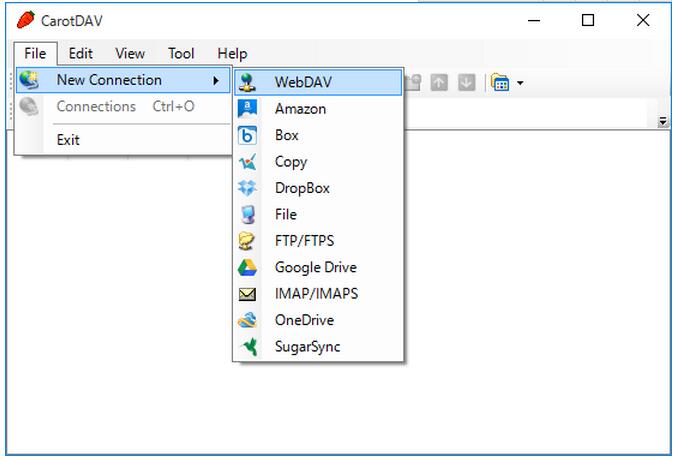
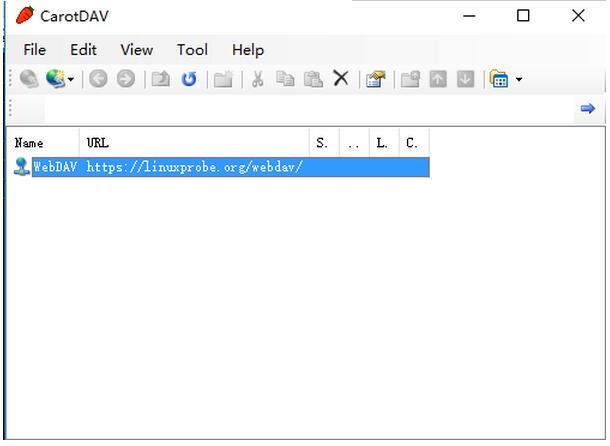
下载“carotdav”,这是一个免费的webdav客户端,从以下网站⇒ ,下载后,安装并启动carotdav,然后显示以下屏幕,单击“文件”按钮并选择“webdav”。
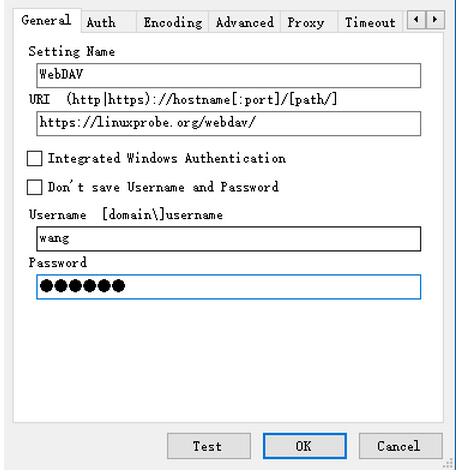
[5]在“设置名称”字段中输入任何名称,并在“uri”字段中输入[服务器名称/ webdav目录],并输入用户名和密码
[7]配置添加如下,点击它连接到服务器。
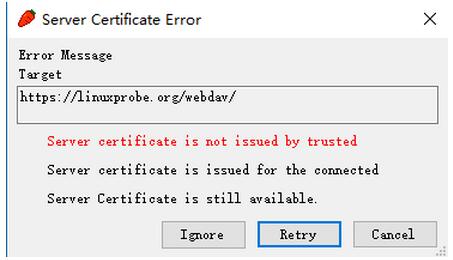
[8] waring显示如下,它的ssl证书没有安装在您的电脑上,它没有ploblem,点击“忽略”,然后去下一步。
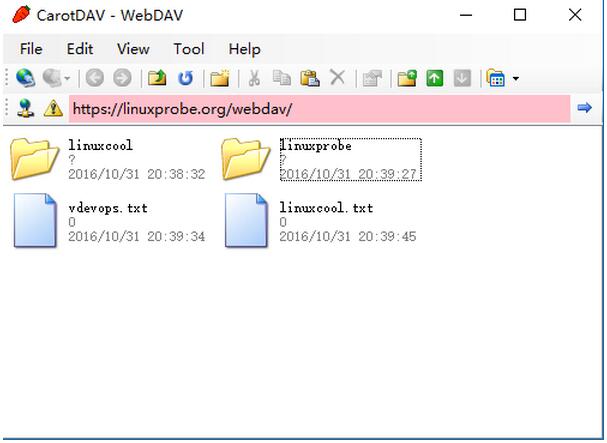
[9] 到webdav目录下创建测试目录和文件
?
|
1
2
3
4
5
|
[root@linuxprobe tmp]
[root@linuxprobe webdav]
[root@linuxprobe webdav]
[root@linuxprobe webdav]
[root@linuxprobe webdav]
|
以上就是本文的全部内容,希望对大家的学习有所帮助,也希望大家多多支持服务器之家。
原文链接:http://blog.csdn.net/wh211212/article/details/52982917 |



 發表於 2023-9-24 00:00:00