- UID
- 669560
- 積分
- 0
- 金币
- 0
- 精華
- 0
- 威望
- 0
- 贡献
- 0
- 閲讀權限
- 220
- 註冊時間
- 2008-6-3
- 最後登錄
- 2026-5-6
- 在線時間
- 0 小時
热心网友
- 金币
- 0
- 閲讀權限
- 220
- 精華
- 0
- 威望
- 0
- 贡献
- 0
- 在線時間
- 0 小時
- 註冊時間
- 2008-6-3
|
一:HTML5新增的属性
HTML目录:
   1、新增的标签
        语义化标签
        canvas(画板)
        svg
        audio(音频播放)
        video(视频播放)
    2、新增的属性
        placeholder
        calendar,date time email url search
        ContentEditable
        Draggable
        Hidden
        Context-menu
        Data-val(自定义属性)
    3、api
        定位(需要地理位置的功能)
        重力感应(陀螺仪)
        request-animation-frame(动画优化)
        History(控制当前页面的历史记录)
        LocalStorage,SessionStorage(存储信息,比如:历史的最高纪录)
        WebSocket(在线聊天,聊天室)
        FileReader(文件读取,预览)
        WebWorker(文件的异步,提升性能,提升交互体验)
        Fetch(传说中的ajax)
1、input新增的属性,有些浏览器支持,有些不支持,使用在form表单里面
     <form action="">
            <input type="date">//显示年月日<!--chrome支持,Safari,IE不支持-->
            <input type="time">//显示早中晚+几点<!--chrome支持,Safari,IE不支持-->
            <input type="week">//显示年+第几周<!--chrome支持,Safari,IE不支持-->
            <input type="datetime-local">//显示年月日,早中晚+几点<!--显示时间和日期,chrome支持,Safari,IE不支持-->
            <input type="number">//<!--chrome支持,Safari,IE不支持-->
            <input type="email">//<!--chrome,火狐支持,Safari,IE不支持-->
            <input type="color">//<!--chrome支持,Safari,IE不支持-->
            <input type="range" min="1" max="100">//<!--chrome,Safari支持,火狐IE不支持-->
            <input type="search">//<!--chrome支持,Safari支持一点,IE不支持-->
            <input type="url">//<!--chrome,火狐支持,Safari,IE不支持-->
            <input type="submit">
        </form>
2、contenteditable="true",可编辑的
<div contenteditable="true">aa</div>//<!-- 可编辑的,没有兼容问题,本身没有可以继承父级-->
3 、a和img标签默认是可拖拽的,其余的加draggable可拖拽,拖拽的生命周期:1、拖拽开始,拖拽进行中,拖拽结束;2、拖拽的物体,目标区域
<div class="wrap" draggable="true">//</div><!-- chrome,Safari支持,firefox不支持-->4
4、canvas
    // var ctx = canvas.getContext("2d");获取画笔
    // ctx.stroke();把画笔显示出来
    // ctx.moveTo(100, 100);//起点
    // ctx.beginPath();开始新一条路径
    // ctx.lineWidth=10;线条的宽度
    // ctx.closePath();//闭合
    // // ctx.fill();//填充颜色
// 画矩形的方法
    // ctx.rect(100,100,100,100);ctx.stroke();
    // ctx.strokeRect(100,100,100,100);
    // ctx.fillRect(100,100,100,100);填充颜色的矩形
    // ctx.moveTo(100, 100);//起点 ctx.lineTo(200, 100);ctx.lineTo(200,200);ctx.lineTo(100,200); ctx.lineTo(100,100);ctx.stroke();
    // ctx.moveTo(100, 100);//起点 ctx.lineTo(200, 100);ctx.lineTo(200,200);ctx.lineTo(100,200);ctx.closePath();
列子:下落的小方块
canvas {
            width: 500px;
            height: 300px;
            border: 1px solid darkcyan;
        }
<canvas id="can" width="500px" height="300px"></canvas>
// 下落的小方块
    var height = 100;
    var timer = setInterval(function () {
        ctx.clearRect(0, 0, 500, 300);//清除之前画的
        ctx.fillRect(100, height, 50, 50);
        height+=2;
    }, 50);
 // 画圆 (圆心(x,y),半径(r)弧度(起始弧度,结束弧度)方向(顺时针0,逆时针1))
    ctx.arc(100,100,50,Math.PI*2,0);
    ctx.stroke();
    // 吃东西形状
    ctx.arc(100,100,50,0,Math.PI*1.8,0);
    ctx.lineTo(100,100);
    ctx.closePath();
    ctx.fill();
    ctx.stroke();
// 画圆角矩形B(x,y) C(x,y)圆角大小
    ctx.moveTo(100,110);//起点
    ctx.arcTo(100,200,200,200,10);
    ctx.arcTo(200,200,200,100,10);
    ctx.arcTo(200,100,100,100,10);
    ctx.arcTo(100,100,100,200,10);
    ctx.stroke();
贝塞尔曲线:
  // 二次贝塞尔曲线
    ctx.beginPath();
    ctx.moveTo(100, 100);
    ctx.quadraticCurveTo(200, 200, 300, 100);
    ctx.stroke();

    // 三次贝塞尔曲线
    ctx.beginPath();
    ctx.moveTo(100, 100);
    ctx.bezierCurveTo(200, 200, 300, 100,400,200);
    ctx.stroke();
    // 一个小波浪图
    var width = 500;
    var height = 300;
    var offset = 0;
    var num=0;
    var canvas = document.getElementById('can');
    var ctx = canvas.getContext("2d");
    setInterval(function () {
        ctx.clearRect(0, 0, 500, 300);
        ctx.beginPath();
        ctx.moveTo(0 + offset - 500, height / 2);
        ctx.quadraticCurveTo(width / 4 + offset - 500, height / 2 + Math.sin(num) * 120, width / 2 + offset - 500, height / 2);
        ctx.quadraticCurveTo(width / 4 * 3 + offset - 500, height / 2 - Math.sin(num) * 120, width + offset - 500, height / 2);

        ctx.moveTo(0 + offset, height / 2);
        ctx.quadraticCurveTo(width / 4 + offset, height / 2 + Math.sin(num) * 120, width / 2 + offset, height / 2);
        ctx.quadraticCurveTo(width / 4 * 3 + offset, height / 2 - Math.sin(num) * 120, width + offset, height / 2);
        offset += 2;
        offset %= 500;
        ctx.stroke();
        num+=0.01;
    }, 20);
  // 直线旋转,根据画布的原点
    ctx.rotate(Math.PI / 6);//根据画布的原点旋转
    ctx.moveTo(100, 100);
    ctx.lineTo(200, 100);
    ctx.stroke();
    // 根据坐标轴旋转
    ctx.translate(100, 100);//移动坐标系
    ctx.moveTo(0, 0);
    ctx.rotate(Math.PI / 6);//根据画布的原点旋转
    ctx.lineTo(100, 0);
    ctx.stroke();
    // 矩形缩放
    ctx.scale(2,2);//缩放x,y
    ctx.fillRect(100, 100,100,100);
    ctx.stroke();
这个translate和scale是设置所有的图形,如果不想其他图形受到影响就要save保存一下原始数据,然后restore还原
 var canvas = document.getElementById('can');
    var ctx = canvas.getContext("2d");
    ctx.beginPath();
    ctx.save();// 存储当前的平移,旋转,缩放数据
    ctx.translate(100,100);//translate和rotate是全局的,只要第一个设置了translate和rotate,画第二个矩形的时候会跟着旋转的路劲画
    ctx.rotate(Math.PI / 4);
    ctx.strokeRect(0, 0, 100, 50);
    ctx.beginPath();
    ctx.restore();//恢复所有的平移和旋转,第二个矩形不是按原来的位置
    ctx.strokeRect(200, 0, 100, 50);
颜色填充:
   var canvas = document.getElementById('can');
    var ctx = canvas.getContext("2d");
    // 第一种背景颜色填充
    ctx.fillStyle = "blue";
    ctx.fillRect(100, 100, 100, 50);
    ctx.stroke();
    // 第二种用图片填充,图片和纹理的填充是已原点填充的,所以要改变坐标系位置
    var img = new Image();
    img.src = './img/1.png';
    img.onload = function () {
        ctx.beginPath();
        ctx.translate(100,100);
        var bg = ctx.createPattern(img, 'no-repeat');//图片填充要创建纹理
        ctx.fillStyle = bg;
        ctx.fillRect(0, 0, 300, 100);
        ctx.stroke();
    }
    // 第三种渐变颜色填充,已原点填充的,所以要改变坐标系位置
    ctx.beginPath();
    var bg = ctx.createLinearGradient(0,0,200,0);//渐变颜色填充,x0,y0,x1,y1
    bg.addColorStop(0,'white');//起始颜色
    bg.addColorStop(1,'black');//终止颜色
    ctx.fillStyle = bg;
    ctx.translate(100,100);
    ctx.fillRect(0,0, 300, 100);
    ctx.stroke();
    // 第四种:辐射渐变
    ctx.beginPath();
    var bg = ctx.createRadialGradient(100, 100, 0, 100, 100, 100);//渐变颜色填充,x1,y1,半径,x2,y2,半径
    bg.addColorStop(0, 'red');
    bg.addColorStop(0.5, 'blue');
    bg.addColorStop(1, 'green');
    ctx.fillStyle = bg;
    ctx.fillRect(0, 0, 200, 200);
    // canvas阴影
    ctx.beginPath();
    ctx.shadowColor='green';//阴影颜色
    ctx.shadowBlur=100;//阴影大小
    ctx.shadowOffsetX=15;
    ctx.shadowOffsetY=15;
    ctx.fillRect(100, 100, 100, 100);
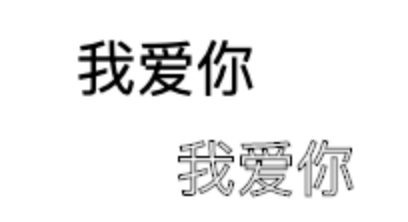
在canvas里面绘制文字
    ctx.font = '30px Georgia';
    ctx.fillText("我爱你", 100, 100);//细字体,实心字体
    ctx.strokeText("我爱你", 150, 150);//租字体,空心字体
线端样式:给线条的两端加修饰
    ctx.beginPath();
    ctx.moveTo(50,50);
    ctx.lineCap='round';//给线条两端添加样式,square正方形,round椭圆,butt原来的样子
    ctx.lineTo(150,50);
    ctx.lineWidth=10;
    ctx.stroke();
    ctx.beginPath();
    ctx.moveTo(50,50);
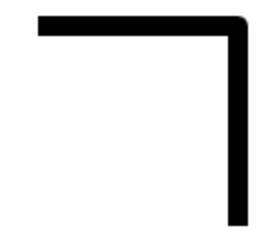
    ctx.lineJoin='round';//给两个线条的相交点添加样式,round圆角,bevel相交两个点砍掉,miter尖锐的
   ctx.miterLimit=5;//限制尖锐的长度
    ctx.lineTo(150,50);
    ctx.lineTo(150,150);
    ctx.lineWidth=10;
    ctx.stroke();
5、svg:放大,不会失真,适合大面积的贴图,通常动画较少或者简单,标签和css画。canvas:适合小面积的绘图,适合动画
5.1、画线条
    .line1 {
            /* 显示线条 */
            stroke: darkcyan;
            stroke-width: 3px;
        }
        .line2 {
            stroke: darkblue;
            stroke-width: 2px;
        }
<svg width="500px" height="300px" style="border:1px solid blue">
        <line x1="100" y1="100" x2="200" y2="100" class="line1"></line>
        <line x1="200" y1="100" x2="200" y2="200" class="line2"></line>
</svg>
5.2、画矩形
<rect height="50" width="100" x="0" y="0" rx="10" ry="10"></rect> //rx是x方向的圆角,ry是y方向的圆<circle r="10" cx="20" cy="20"></circle>画圆(半径,x轴的圆心。y轴的圆心)<ellipse rx="100" ry="30" cx="200" cy="200"></ellipse>画椭圆(x半径,y半径,x位置,y位置)
<polyline points="0 0,50 50,50 100,100 100,50 100"></polyline>画折线(起点,拐点,拐点...,终点),每一个点用空格隔开,点和点用逗号隔开
//样式
polyline{
            /* 不默认填充,添加自己想要的边框 */
            fill:transparent;
            stroke: darkblue;
            stroke-width: 3px;
       fill-opacity:0.2;//填充半透明
       stroke-opacity:0.1;//边框半透明
       stroke-linecap: round;
       stroke-linejoin: bevel;
}
<polygon points="0 0,50 50,50 100,100 100,100 50"></polygon>//polyline和polygon填充的时候是一样的,不填充的时候polyline不会闭合,polygon会闭合
<text x="100" y="100">hello</text>//文本
来源:https://www.cnblogs.com/pengppp/p/11963575.html |
|



 發表於 2019-11-30 18:55:00