|
Visual Studio Code 集成 gitee
下载并安装git
https://git-scm.com/
https://git-scm.com/downloads
https://github.com/git-for-windows/git/releases/download/v2.43.0.windows.1/Git-2.43.0-64-bit.exe
在gitee.com上注册自己的账户
https://gitee.com/
在gitee.com上创建仓库
在本机配置git
桌面右键 选择 Git Bash Here
git config --global user.name "xxxxxx"
git config --global user.email "1xxxxxx6@qq.com"
配置密钥
新项目推送到Gitee【不行】
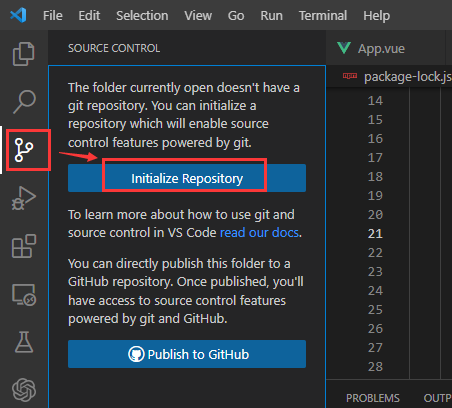
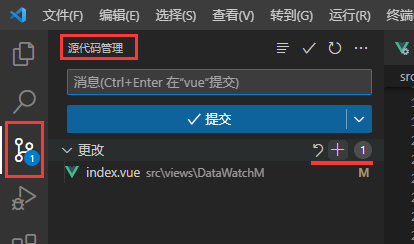
(1)在左侧点击源代码管理按钮。
点击初始化仓库。等待约1分钟。
(2)创建 .gitignore 文件,详见下面的链接
https://www.cnblogs.com/emanlee/p/18006958
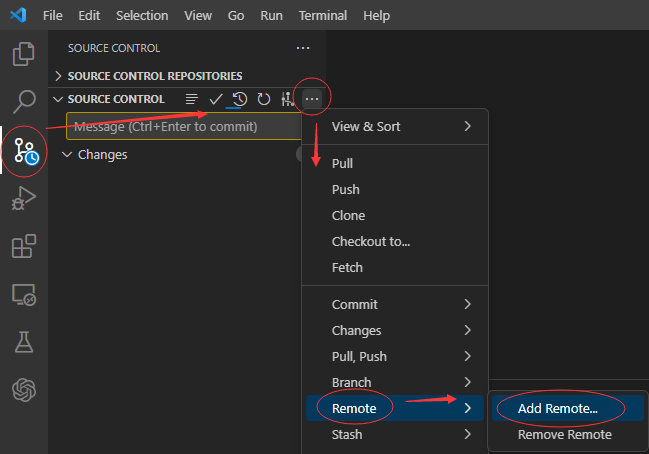
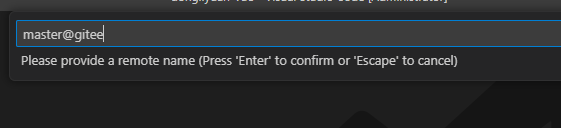
(3)链接到远程仓库 gitee
在源代码管理中,按照上图操作,点选添加远程存储库。
https://gitee.com/emanlee/dongliyuan-vue.git
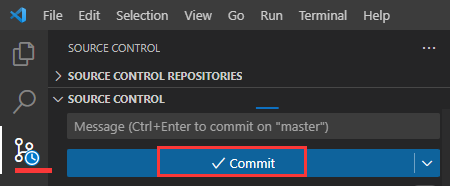
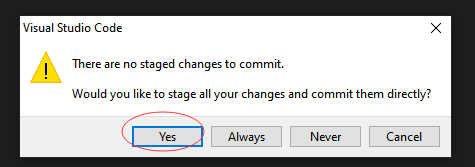
(4)提交代码
VS Code克隆到本地【可行】
gitee上创建仓库
初始化readme,出现master分支
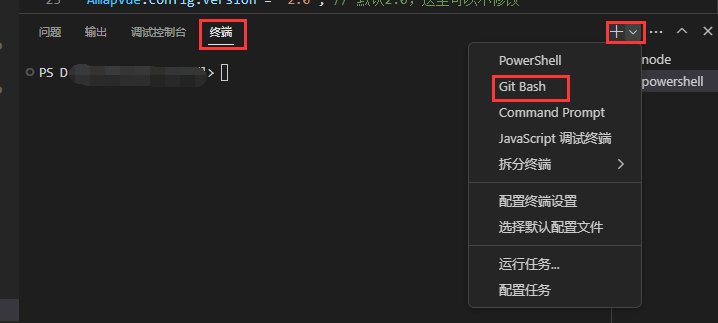
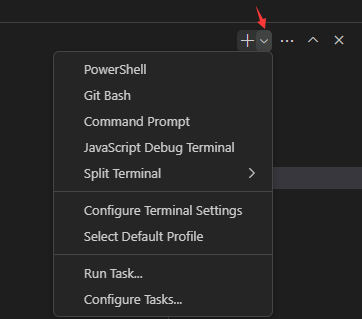
clone : 开启VS Code,打开一个文件夹,然后,终端-- Git Bash -- git clone ###.git
Administrator@AM-L MINGW64 /e/_prjct/dan/code/dan-vue
$ git clone https://gitee.com/aimin-li/dan-vue.git
Cloning into 'dan-vue'...
remote: Enumerating objects: 6, done.
remote: Counting objects: 100% (6/6), done.
remote: Compressing objects: 100% (5/5), done.
remote: Total 6 (delta 0), reused 0 (delta 0), pack-reused 0
Receiving objects: 100% (6/6), done.
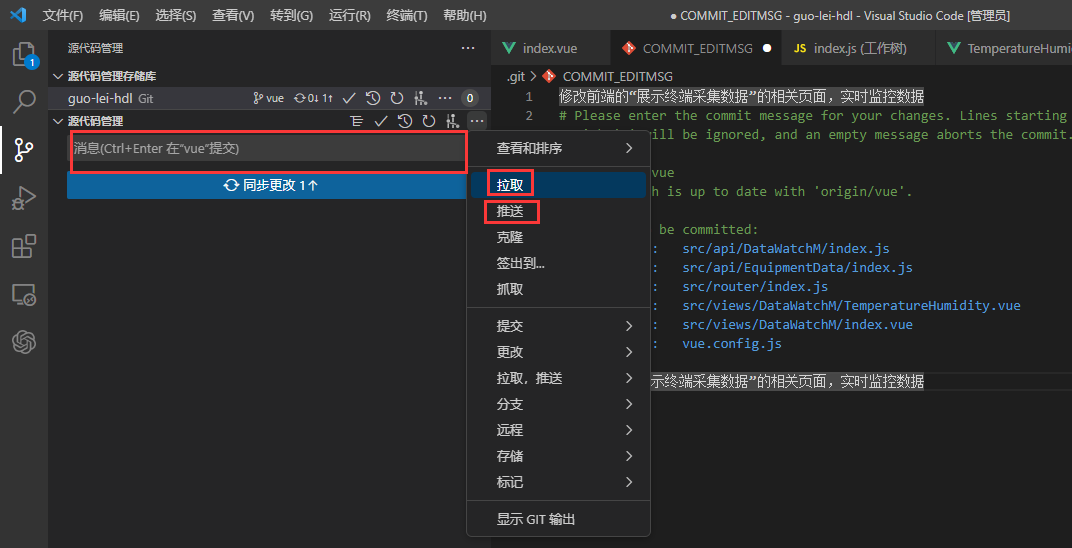
左侧 panel,commit 右侧符号 -- commit & push
右侧 panel -- 填写提交comments - 点击勾
REF
https://blog.csdn.net/m0_60802154/article/details/124808989
===================================
===================================
Visual Studio Code
vs code 如何查看git操作的历史记录日志
一、Git Graph
1. 安装
选择红框的"扩展",搜索"Git Graph",直接安装即可。
2. 使用
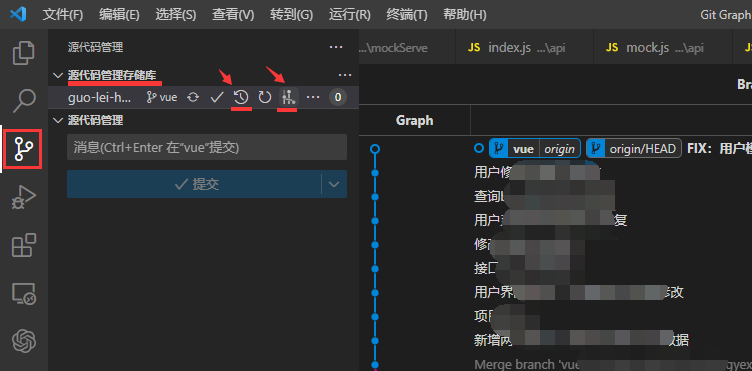
打开源代码管理菜单,会发现右上角有个小分支图标,直接点击打开Git Graph。也可以直接从底部的Git Graph打开。
打开后,可查看所有git log的历史记录,也可切换分支,查看具体分支的提交记录。
二、Git History
可查看具体文件的提交记录
1. 安装
2. 使用
右键要查看的文件,选"Git: View File History",即可。效果如图:
=============================
VS code git
链接:https://blog.csdn.net/TYL_Queen/article/details/129197173
===================================
===================================
===================================
===================================
来源:https://www.cnblogs.com/emanlee/p/18011496 |



 發表於 2025-2-20 19:31:00